> For clean Markdown content of this page, append .md to this URL. For the complete documentation index, see https://docs.agentmail.to/llms.txt. For full content including API reference and SDK examples, see https://docs.agentmail.to/llms-full.txt.
# Using Custom Domains
> A step-by-step guide to configuring your custom domain with AgentMail for enhanced branding and trust.
## Why Use a Custom Domain?
When you're deploying AI agents that send email at scale, deliverability and trust are paramount. While the default `@agentmail.to` domain is great for getting started, using your own custom domains is essential for production applications. It gives you control over your sending reputation and enables advanced strategies for high-volume outreach.
Each domain builds its own sending reputation. By using your own domain, you
control this reputation, which is the single most important factor in
reaching the inbox.
For high-volume sending, register multiple domains (e.g., `mercor.com`,
`usemercor.com`, `mercorapp.com`). Spreading email volume across them is a
key strategy to maximize deliverability.
## Setting Up Your Custom Domain
Configuring your domain is a three-step process: add the domain via API, copy the provided records into your DNS provider, and wait for verification.
Choose your preferred method to create a domain and get the required DNS records. AgentMail will register your domain and immediately return the full set of DNS records required for verification.
Navigate to the [AgentMail Console](https://console.agentmail.to) and follow these steps:
1. **Go to Domains Section**: Click on "Domains" in the left sidebar
2. **Add New Domain**: Click "Add Domain" or "Create Domain" button
3. **Enter Domain Name**: Type your domain name (e.g., `your-domain.com`)
4. **Create Domain**: Click "Create" to register the domain
```bash title="cURL"
curl -X POST https://api.agentmail.to/domains/your-domain.com \
-H "Authorization: Bearer YOUR_API_KEY" \
-H "Content-Type: application/json"
```
```python title="Python"
from agentmail import AgentMail
client = AgentMail(api_key="YOUR_API_KEY")
# Create domain with default settings
domain = client.domains.create("your-domain.com")
# Or with custom feedback forwarding
domain = client.domains.create(
"your-domain.com",
feedback_enabled=False
)
print("Domain created:", domain)
print("DNS Records:", domain.records)
```
```typescript title="TypeScript"
import { AgentMailClient } from "agentmail";
const client = new AgentMailClient({
apiKey: "YOUR_API_KEY",
});
// Create domain with default settings
const domain = await client.domains.create("your-domain.com");
// Or with custom feedback forwarding
const domain = await client.domains.create("your-domain.com", {
feedback_enabled: false
});
console.log("Domain created:", domain);
console.log("DNS Records:", domain.records);
```
```bash title="CLI"
# create domain with default settings
agentmail domains create --domain your-domain.com
```
You can make these requests idempotent by including a `client_id`
attribute in the request so we dont serve an error if you try and create a
domain that has already been registered with us.
By default, bounce and complaint notifications are sent to your domain. You
can disable this by setting `feedback_enabled` to `false` in your request. If
not specified it is default set to `true`
The API response includes a `records` array. Each object in this array contains the precise `name`, `type`, `value`, and `priority` you'll need to add to your DNS provider.
The initial `status` of the domain will be `pending`. It will change as you configure your domain and we verify it on our end.
The process for adding records varies slightly between providers. The examples below assume you are configuring records in the apex `domain.com` hosted zone. If you are using a subdomain make sure it is in the apex domain hosted zone.
### Option A: Upload BIND Zone File (Easiest)
A BIND zone file is a text file that contains DNS resource records in a standardized format. This approach allows you to bulk upload our records to your DNS provider without you needing to go down one by one.
**How to use the BIND zone file:**
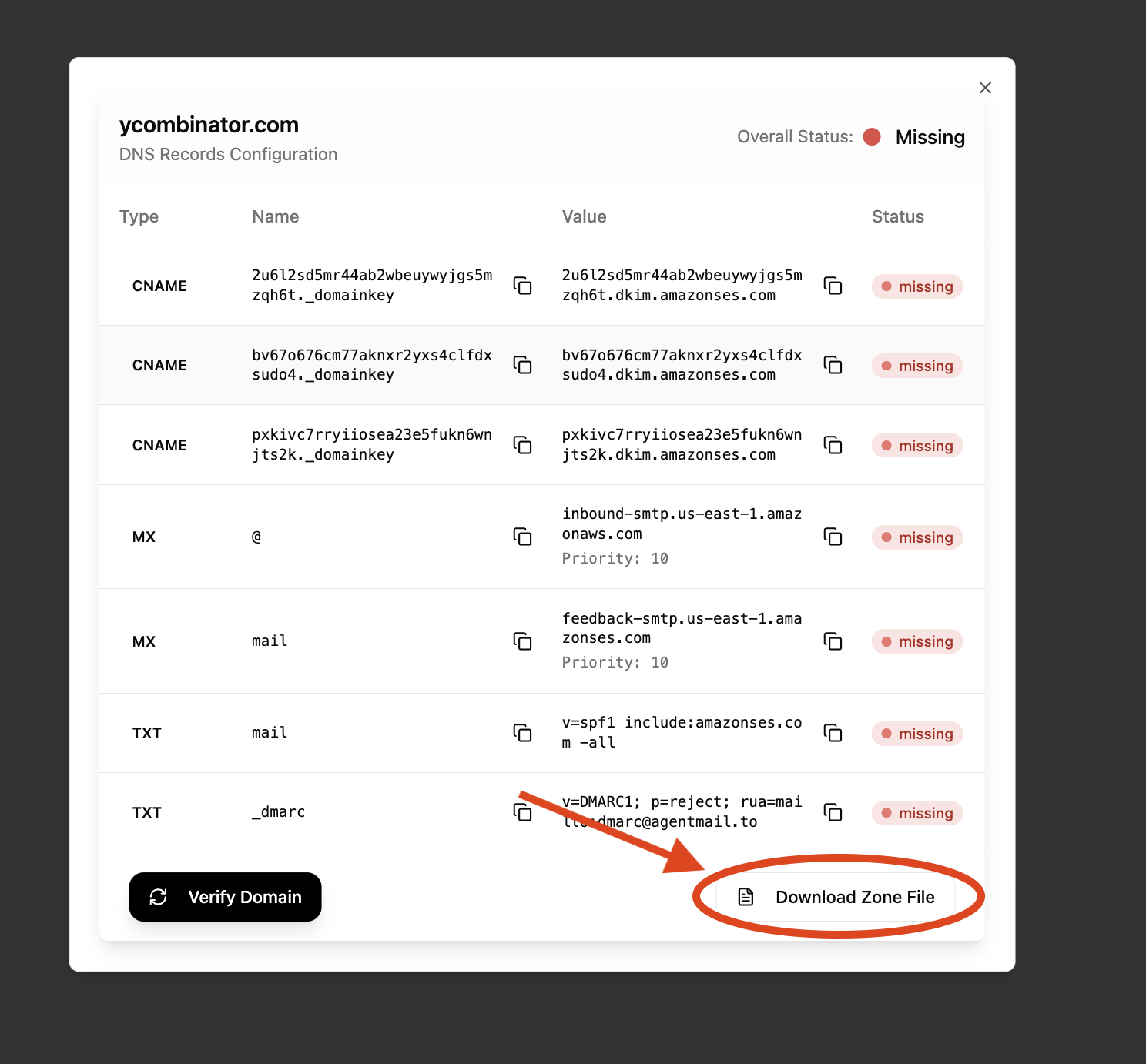
**Step 1: Download the BIND zone file**
After creating your domain in the AgentMail Console, click the "Download BIND Zone File" button to get the complete zone file.
 **Step 2: Import to Cloudflare**
1. Go to your Cloudflare dashboard and select your domain
2. Navigate to **DNS > Records**
**Step 2: Import to Cloudflare**
1. Go to your Cloudflare dashboard and select your domain
2. Navigate to **DNS > Records**
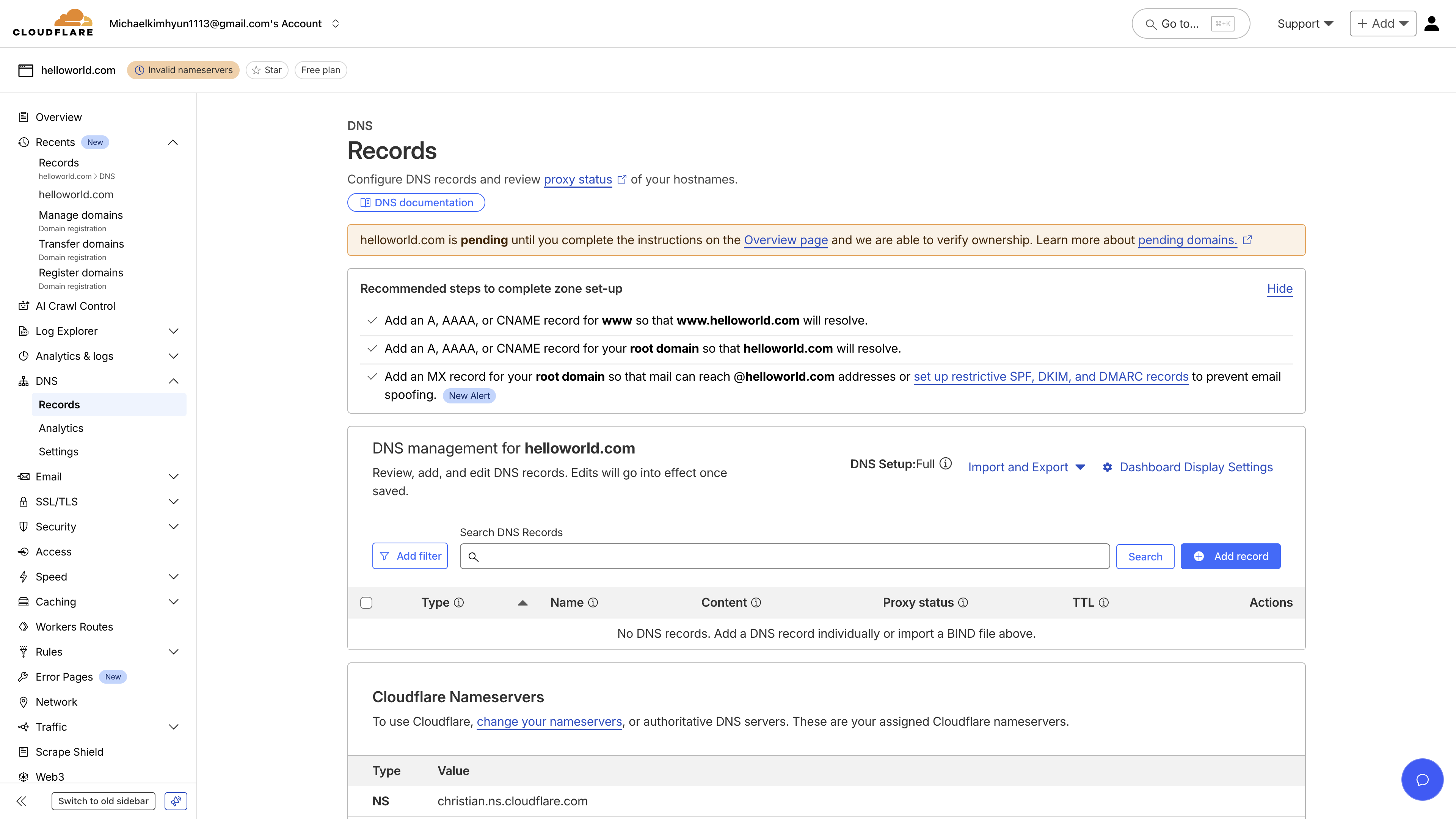 3. Click **"Import and Export"**
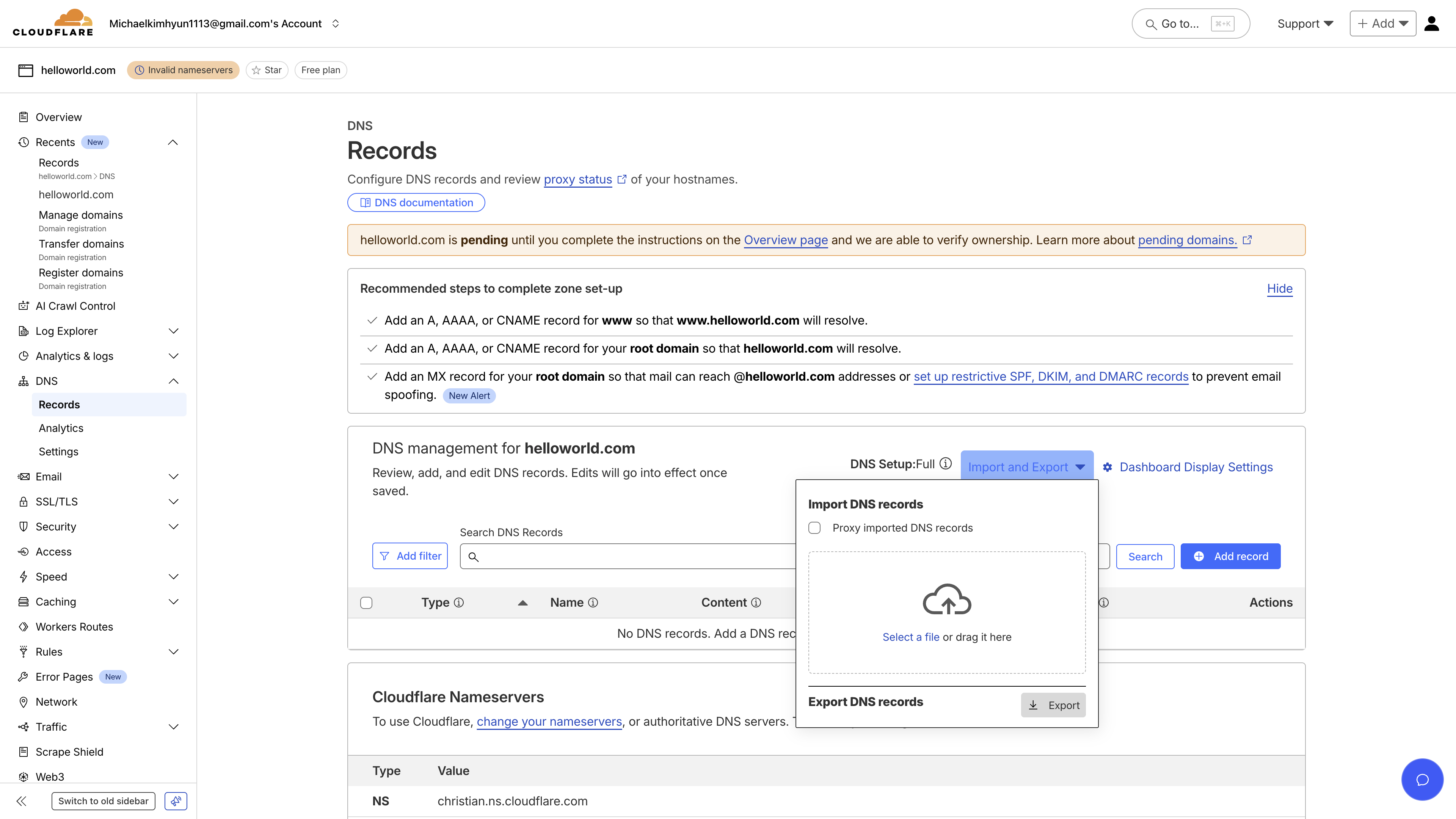 4. Upload the downloaded BIND zone file as is
**Step 2: Import to Route 53**
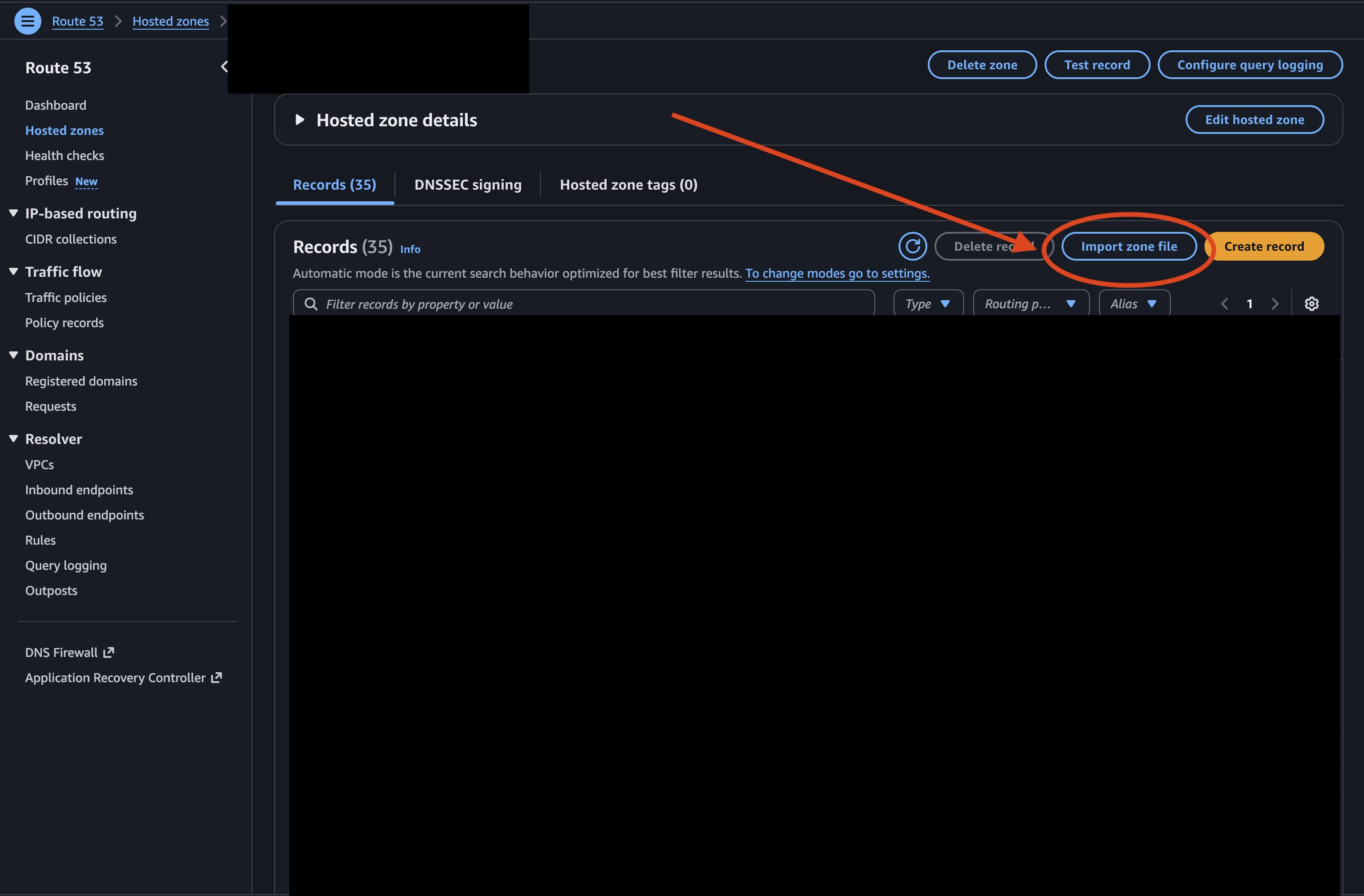
1. Go to your Route 53 hosted zone for your domain
2. Click **"Import zone file"** in the top right corner
4. Upload the downloaded BIND zone file as is
**Step 2: Import to Route 53**
1. Go to your Route 53 hosted zone for your domain
2. Click **"Import zone file"** in the top right corner
 3. Paste the CONTENTS of downloaded BIND zone file
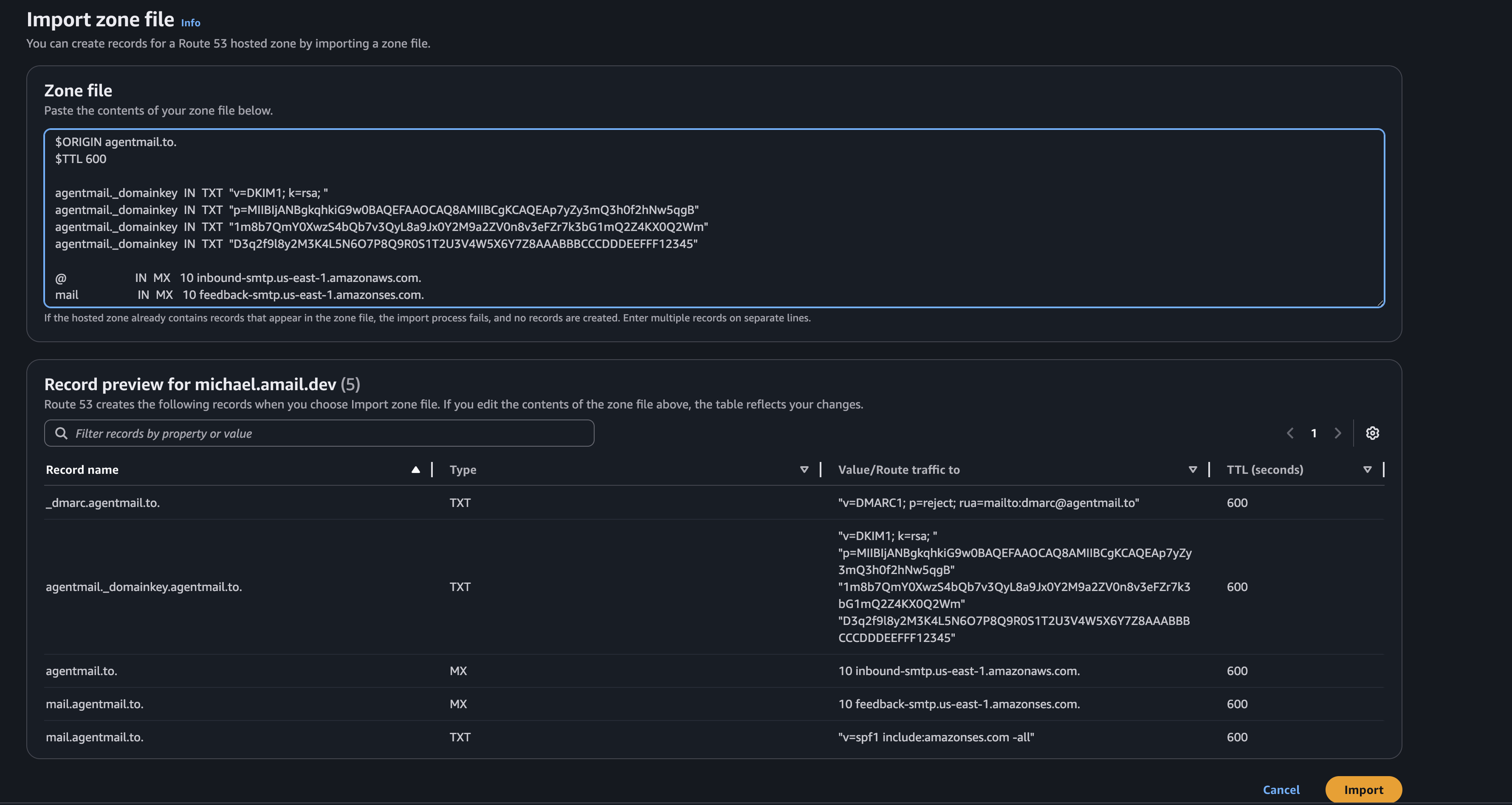 4. Review the records and click **"Import"**
**AWS Route 53 has a 255 character maximum per string.** It will get angry at the DKIM record since it is longer than 255 chars (we use more secure encryption key so we get better deliverability with Gmail!)
**When entering TXT values in the Route 53 UI, you MUST do the following.**
1. Split the value into two quoted strings.
a. e.g.: "abcd" -> "ab""cd"
2. Ensure there is NO SPACE between the quoted strings. This will make or break validation.
**Correct:** `"first-part-of-value""second-part-of-value"`
**Wrong:** `"first-part-of-value" "second-part-of-value"` (space between strings)
If you accidentally include a space or click enter, Route 53 will create **two separate TXT records** instead of one concatenated record. This will cause email authentication to fail, and providers like **Gmail will reject your emails**.
**Step 2: Import to Porkbun**
1. Go to your Porkbun profile and click domain management
2. Navigate to the **DNS** subtab of the domain you want to send from
4. Review the records and click **"Import"**
**AWS Route 53 has a 255 character maximum per string.** It will get angry at the DKIM record since it is longer than 255 chars (we use more secure encryption key so we get better deliverability with Gmail!)
**When entering TXT values in the Route 53 UI, you MUST do the following.**
1. Split the value into two quoted strings.
a. e.g.: "abcd" -> "ab""cd"
2. Ensure there is NO SPACE between the quoted strings. This will make or break validation.
**Correct:** `"first-part-of-value""second-part-of-value"`
**Wrong:** `"first-part-of-value" "second-part-of-value"` (space between strings)
If you accidentally include a space or click enter, Route 53 will create **two separate TXT records** instead of one concatenated record. This will cause email authentication to fail, and providers like **Gmail will reject your emails**.
**Step 2: Import to Porkbun**
1. Go to your Porkbun profile and click domain management
2. Navigate to the **DNS** subtab of the domain you want to send from
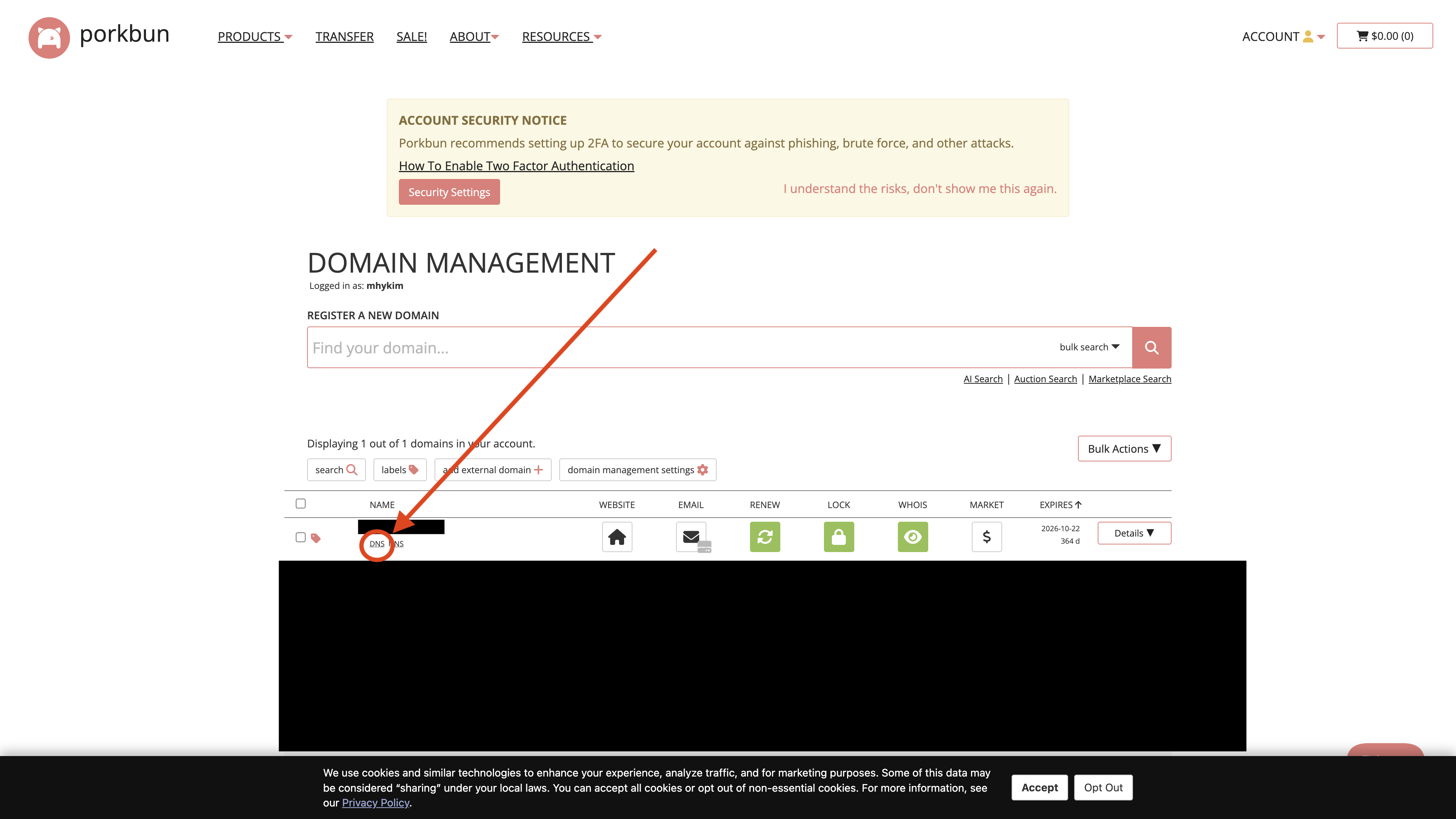 3. Scroll down to the quick upload section
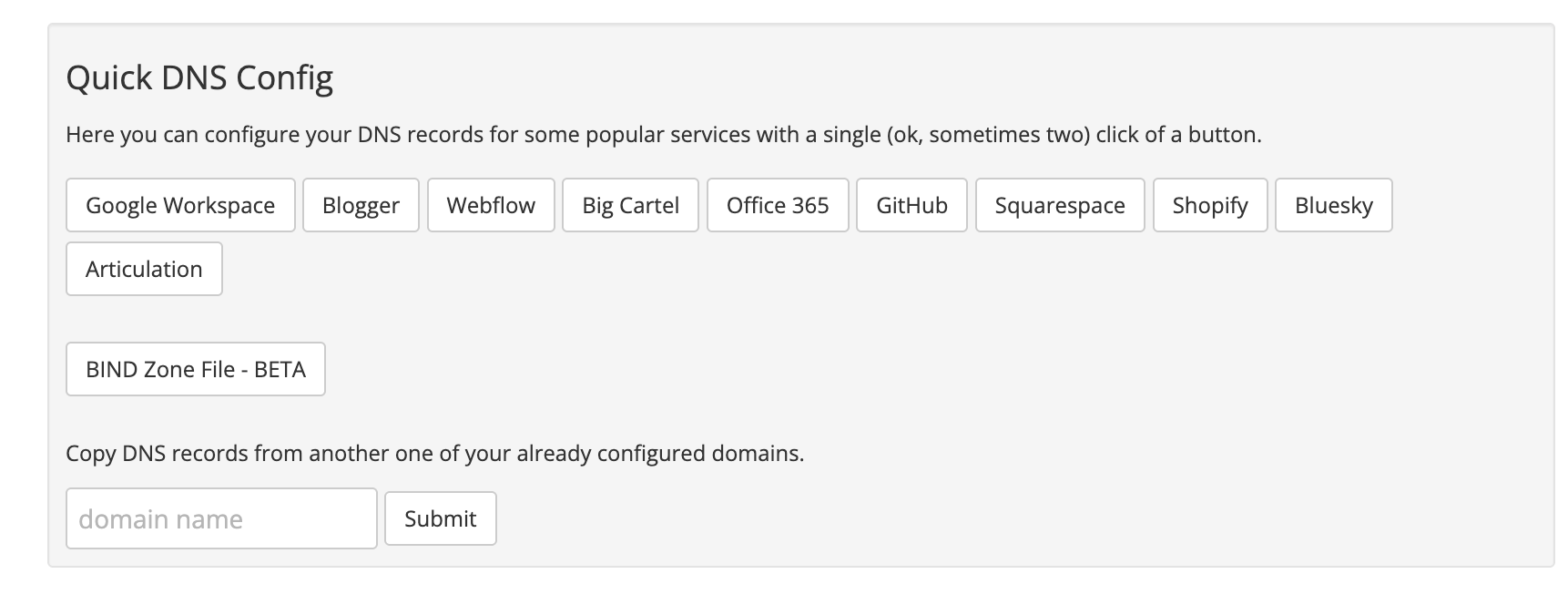 4. Upload the downloaded BIND zone file as is
{" "}
Uploading a BIND zone file in Porkbun REPLACES the existing records you have.
This is fine if this is a fresh domain you bought for the sake of sending
email but if this is a domain that has other important records configured,
consider adding [additional records
manually](#option-b-add-individual-records).
Check that all records (TXT, MX) have been correctly imported in the
console(the console will show in real time if we can find the records,
typically within seconds).
### Option B: Add Individual Records
Below are detailed instructions for AWS Route53, CloudFlare, and Namecheap. The instructions vary depending on whether you're using the AgentMail Console or the API directly.
If you created your domain through the [AgentMail Console](https://console.agentmail.to), the DNS records are displayed in a simplified format that's ready for copy-paste into your DNS provider.
In the dashboard (**DNS > Records**), click **"Add record"**.
* **TXT (DMARC/SPF/DKIM):**
* **Name:** Copy the **Name** value directly from the console.
* **Content:** Copy the **Value** from the console.
* **MX:**
* **Name:** Enter `@` to apply the record to the root domain.
* **Mail server:** Copy the **Value** from the console.
* **Priority:** Use the priority shown in the console.
In your hosted zone, click **"Create record"**.
* **TXT (DMARC/SPF):**
* **Record name:** Copy the **Name** value directly from the console (e.g., `_dmarc` or `mail` or `agentmail._domainkey`).
* **Value:** Copy the **Value** from the console, ensuring it is enclosed in quotes.
**AWS Route 53 has a 255 character maximum per string.** It will get angry at the DKIM record since it is longer than 255 chars (we use more secure encryption key so we get better deliverability with Gmail!)
**When entering TXT values in the Route 53 UI, you MUST do the following.**
1. Split the value into two quoted strings.
a. e.g.: "abcd" -> "ab""cd"
2. Ensure there is NO SPACE between the quoted strings. This will make or break validation.
**Correct:** `"first-part-of-value""second-part-of-value"`
**Wrong:** `"first-part-of-value" "second-part-of-value"` (space between strings)
If you accidentally include a space or click enter, Route 53 will create **two separate TXT records** instead of one concatenated record. This will cause email authentication to fail, and providers like **Gmail will reject your emails**.
* **MX:**
* **Record name:** Enter the value exactly as we return it, whether its `@` or the subdomain.
* **Value:** Copy the **Value** from the console (e.g., `inbound-smtp.us-east-1.amazonaws.com`).
* **Priority:** Use the priority shown in the console (typically `10`).
The console automatically formats DNS record names to be relative hostnames (without the full domain), making them ready for direct copy-paste into your DNS provider. No manual parsing required!
If you're using the API directly, the DNS records are returned as fully qualified domain names (FQDNs) that require some manual parsing.
In the dashboard (**DNS > Records**), click **"Add record"**.
* **TXT (DMARC/SPF/DKIM):**
* **Name:** Enter the part of the `name` before your root domain (e.g. `_dmarc`).
* **Content:** Copy paste the `value` from the API response.
* **MX:**
* **Name:** Enter the part of the name before your root domain
* **Mail server:** Enter the `value` from the API.
* **Priority:** Enter the `priority` from the API.
In your hosted zone, click **"Create record"**.
* **TXT (DMARC/SPF/DKIM):**
* **Record name:** Enter the part of the `name` before your root domain (e.g., `_dmarc` for a `name` of `_dmarc.domain.com`, or `mail` for a `name` of `mail.domain.com`, or `agentmail._domainkey` for a `name` of agentmail.\_domainkey.agents.com).
* **Value:** Can copy paste the`value` from the API, ensuring it is enclosed in quotes.
**AWS Route 53 has a 255 character maximum per string.** It will get angry at the DKIM record since it is longer than 255 chars (we use more secure encryption key so we get better deliverability with Gmail!)
**When entering TXT values in the Route 53 UI, you MUST do the following.**
1. Split the value into two quoted strings.
a. e.g.: "abcd" -> "ab""cd"
2. Ensure there is NO SPACE between the quoted strings. This will make or break validation.
**Correct:** `"first-part-of-value""second-part-of-value"`
**Wrong:** `"first-part-of-value" "second-part-of-value"` (space between strings)
If you accidentally include a space or click enter, Route 53 will create **two separate TXT records** instead of one concatenated record. This will cause email authentication to fail, and providers like **Gmail will reject your emails**.
* **MX:**
* **Record name:** Leave this field blank to apply the record to the root domain.
* **Value:** This is critical. You must combine the `priority` and `value` from the API into a single string, separated by a space. For example: `10 inbound-smtp.us-east-1.amazonaws.com`.
Once you've added the records, AgentMail automatically begins to check them. This can take anywhere from a few minutes to 48 hours for your DNS changes to propagate across the internet.
Check your domain verification status in the [AgentMail Console](https://console.agentmail.to/dashboard/domains):
1. **Navigate to Domains**: Go to the "Domains" section in the left sidebar
2. **View Domain Status**: Find your domain in the list and check its status
3. **Monitor Progress**: The status will update automatically as verification progresses
4. **View Details**: Click on your domain to see detailed information about which records are verified
The status indicators will show you exactly where you are in the process:
* **`Not Started`**: You need to click the Verify Domain button to kick start the process
* **`Pending`**: You still need to add or fix your DNS records
* **`Invalid`**: Some of your records are misconfigured. Please verify you inputted them correctly.
* **`Failed`**: Your records are correct, but our servers need a bump. Please click the verify domain button in the console.
* **`Verifying`**: DNS records are correct, and we're authorizing the domain
* **`Verified`**: Domain is fully verified and ready for sending
Here are instructions for some common DNS providers. This list is not exhaustive, so please consult your provider's documentation if you don't see it here.
| DNS/Hosting Provider | Documentation Link |
| :------------------- | :--------------------------------------------------------------------------------------------------------------------------------------------------------------------------------------------------------------------------------------------------------------------------------------------------------------------------------------------------------------------------------------- |
| **GoDaddy** | [MX: Add an MX record](https://www.godaddy.com/help/add-an-mx-record-19234)
4. Upload the downloaded BIND zone file as is
{" "}
Uploading a BIND zone file in Porkbun REPLACES the existing records you have.
This is fine if this is a fresh domain you bought for the sake of sending
email but if this is a domain that has other important records configured,
consider adding [additional records
manually](#option-b-add-individual-records).
Check that all records (TXT, MX) have been correctly imported in the
console(the console will show in real time if we can find the records,
typically within seconds).
### Option B: Add Individual Records
Below are detailed instructions for AWS Route53, CloudFlare, and Namecheap. The instructions vary depending on whether you're using the AgentMail Console or the API directly.
If you created your domain through the [AgentMail Console](https://console.agentmail.to), the DNS records are displayed in a simplified format that's ready for copy-paste into your DNS provider.
In the dashboard (**DNS > Records**), click **"Add record"**.
* **TXT (DMARC/SPF/DKIM):**
* **Name:** Copy the **Name** value directly from the console.
* **Content:** Copy the **Value** from the console.
* **MX:**
* **Name:** Enter `@` to apply the record to the root domain.
* **Mail server:** Copy the **Value** from the console.
* **Priority:** Use the priority shown in the console.
In your hosted zone, click **"Create record"**.
* **TXT (DMARC/SPF):**
* **Record name:** Copy the **Name** value directly from the console (e.g., `_dmarc` or `mail` or `agentmail._domainkey`).
* **Value:** Copy the **Value** from the console, ensuring it is enclosed in quotes.
**AWS Route 53 has a 255 character maximum per string.** It will get angry at the DKIM record since it is longer than 255 chars (we use more secure encryption key so we get better deliverability with Gmail!)
**When entering TXT values in the Route 53 UI, you MUST do the following.**
1. Split the value into two quoted strings.
a. e.g.: "abcd" -> "ab""cd"
2. Ensure there is NO SPACE between the quoted strings. This will make or break validation.
**Correct:** `"first-part-of-value""second-part-of-value"`
**Wrong:** `"first-part-of-value" "second-part-of-value"` (space between strings)
If you accidentally include a space or click enter, Route 53 will create **two separate TXT records** instead of one concatenated record. This will cause email authentication to fail, and providers like **Gmail will reject your emails**.
* **MX:**
* **Record name:** Enter the value exactly as we return it, whether its `@` or the subdomain.
* **Value:** Copy the **Value** from the console (e.g., `inbound-smtp.us-east-1.amazonaws.com`).
* **Priority:** Use the priority shown in the console (typically `10`).
The console automatically formats DNS record names to be relative hostnames (without the full domain), making them ready for direct copy-paste into your DNS provider. No manual parsing required!
If you're using the API directly, the DNS records are returned as fully qualified domain names (FQDNs) that require some manual parsing.
In the dashboard (**DNS > Records**), click **"Add record"**.
* **TXT (DMARC/SPF/DKIM):**
* **Name:** Enter the part of the `name` before your root domain (e.g. `_dmarc`).
* **Content:** Copy paste the `value` from the API response.
* **MX:**
* **Name:** Enter the part of the name before your root domain
* **Mail server:** Enter the `value` from the API.
* **Priority:** Enter the `priority` from the API.
In your hosted zone, click **"Create record"**.
* **TXT (DMARC/SPF/DKIM):**
* **Record name:** Enter the part of the `name` before your root domain (e.g., `_dmarc` for a `name` of `_dmarc.domain.com`, or `mail` for a `name` of `mail.domain.com`, or `agentmail._domainkey` for a `name` of agentmail.\_domainkey.agents.com).
* **Value:** Can copy paste the`value` from the API, ensuring it is enclosed in quotes.
**AWS Route 53 has a 255 character maximum per string.** It will get angry at the DKIM record since it is longer than 255 chars (we use more secure encryption key so we get better deliverability with Gmail!)
**When entering TXT values in the Route 53 UI, you MUST do the following.**
1. Split the value into two quoted strings.
a. e.g.: "abcd" -> "ab""cd"
2. Ensure there is NO SPACE between the quoted strings. This will make or break validation.
**Correct:** `"first-part-of-value""second-part-of-value"`
**Wrong:** `"first-part-of-value" "second-part-of-value"` (space between strings)
If you accidentally include a space or click enter, Route 53 will create **two separate TXT records** instead of one concatenated record. This will cause email authentication to fail, and providers like **Gmail will reject your emails**.
* **MX:**
* **Record name:** Leave this field blank to apply the record to the root domain.
* **Value:** This is critical. You must combine the `priority` and `value` from the API into a single string, separated by a space. For example: `10 inbound-smtp.us-east-1.amazonaws.com`.
Once you've added the records, AgentMail automatically begins to check them. This can take anywhere from a few minutes to 48 hours for your DNS changes to propagate across the internet.
Check your domain verification status in the [AgentMail Console](https://console.agentmail.to/dashboard/domains):
1. **Navigate to Domains**: Go to the "Domains" section in the left sidebar
2. **View Domain Status**: Find your domain in the list and check its status
3. **Monitor Progress**: The status will update automatically as verification progresses
4. **View Details**: Click on your domain to see detailed information about which records are verified
The status indicators will show you exactly where you are in the process:
* **`Not Started`**: You need to click the Verify Domain button to kick start the process
* **`Pending`**: You still need to add or fix your DNS records
* **`Invalid`**: Some of your records are misconfigured. Please verify you inputted them correctly.
* **`Failed`**: Your records are correct, but our servers need a bump. Please click the verify domain button in the console.
* **`Verifying`**: DNS records are correct, and we're authorizing the domain
* **`Verified`**: Domain is fully verified and ready for sending
Here are instructions for some common DNS providers. This list is not exhaustive, so please consult your provider's documentation if you don't see it here.
| DNS/Hosting Provider | Documentation Link |
| :------------------- | :--------------------------------------------------------------------------------------------------------------------------------------------------------------------------------------------------------------------------------------------------------------------------------------------------------------------------------------------------------------------------------------- |
| **GoDaddy** | [MX: Add an MX record](https://www.godaddy.com/help/add-an-mx-record-19234)
[TXT: Add a TXT record](https://www.godaddy.com/help/add-a-txt-record-19232) |
| **DreamHost** | [How do I add custom DNS records?](https://help.dreamhost.com/hc/en-us/articles/215414867-How-do-I-add-custom-DNS-records) |
| **Cloudflare** | [MX: How do I add or edit mail or MX records?](https://support.cloudflare.com/hc/en-us/articles/200168806-Managing-DNS-records-in-Cloudflare)
[TXT: Managing DNS records in Cloudflare](https://support.cloudflare.com/hc/en-us/articles/200168806-Managing-DNS-records-in-Cloudflare) |
| **HostGator** | [Manage DNS Records with HostGator/eNom](https://www.hostgator.com/help/article/manage-dns-records-with-hostgator-enom) |
| **Namecheap** | [MX: How can I set up MX records required for mail service?](https://www.namecheap.com/support/knowledgebase/article.aspx/434/2237/how-can-i-set-up-mx-records-required-for-mail-service)
[TXT: How do I add TXT/SPF/DKIM/DMARC records for my domain?](https://www.namecheap.com/support/knowledgebase/article.aspx/317/2237/how-do-i-add-txtspfdkimdmarc-records-for-my-domain) |
| **Names.co.uk** | [Changing your domain's DNS settings](https://www.names.co.uk/support/articles/changing-your-domains-dns-settings/) |
| **Wix** | [MX: Adding or Updating MX Records in Your Wix Account](https://support.wix.com/en/article/adding-or-updating-mx-records-in-your-wix-account)
[TXT: Adding or Updating TXT Records in Your Wix Account](https://support.wix.com/en/article/adding-or-updating-txt-records-in-your-wix-account) |
Once your domain status is `ready`, you can start creating `Inboxes` with your
custom domain and building your agents!
## Troubleshooting Common DNS Issues
DNS can be tricky. Here are some common issues and how to resolve them.
DNS propagation can take up to 48 hours, though it's often much faster. If
it's been a while, click the verify domain button in the console which will trigger a reverification manually(DNS propagation can get stuck at times).
A domain must have only **one** SPF record. If you're using other services that send email on your behalf (like a CRM), you need to merge their SPF policies with AgentMail's into a single record.
An SPF record is a single line of text. It starts with `v=spf1` and ends with a mechanism like `~all` or `-all`. All your permitted senders go in the middle.
**How to Merge:**
1. **Find your existing SPF record.** It will look something like this: `v=spf1 include:_spf.other-domain.com ~all`
2. **Find AgentMail's SPF include.** This is `include:spf.agentmail.to`.
3. **Combine them.** Copy the `include` from AgentMail and place it into your existing record, right before the `~all` or `-all` part.
```text title="Example: Merging SPF records"
# Before
v=spf1 include:_spf.other-domain.com ~all
# After
v=spf1 include:_spf.other-domain.com include:spf.agentmail.to ~all
```
Just keep adding `include:` mechanisms for each service you use. Remember to only have one `v=spf1` at the beginning and one `~all` or `-all` at the end.
## Best Practices for Domain Management
Check out our guide on [Email Deliverability](/email-deliverability) for tips on warming up your new domain and maintaining a healthy sender reputation.