

Google Workspace
Shared domains
Custom domains help establish trust with your recipients. We recommend configuring a dedicated domain or subdomain with AgentMail. However, sometimes you need to use your primary domain, which may already be managed by another email provider.
It is possible to use the same domain with both Google Workspace and AgentMail. This guide walks you through that configuration.
If your agents only need to send from the domain, register it with "inbound_enabled": false instead. A send-only domain needs no MX change and no routing rule: Google Workspace keeps receiving all of the domain’s mail.
Register the shared domain
Register your domain with POST /v0/domains, setting allow_conflicting_provider to true:
Replace example.com with your domain and set AGENTMAIL_API_KEY to your API key. Use the API base URL for your account’s region.
The flag defaults to false. Without it, registration returns 422 when Google Workspace MX records are detected, even if you have already configured Google’s routing rule or validated TLS for the AgentMail host. Setting it to true allows registration alongside your existing provider; it does not configure DNS or Google Workspace routing.
DNS records
Add the DNS records returned by registration manually, preserving your existing Google Workspace MX records. Publish the AgentMail DKIM and mail subdomain records, and preserve your existing DMARC policy if one is already configured. AgentMail verification requires the DMARC record to include a rua=mailto: reporting address: if your existing record has no rua tag, add one to it rather than publishing a second DMARC record.
Google should remain the preferred mail server for your domain: Google’s MX record is typically priority 1, while AgentMail’s receiving MX record is priority 10 (lower numbers take higher priority). MX priority alone does not route unrecognized addresses to AgentMail; configure the Google Workspace routing rule below.
For a US-region domain named example.com, the MX records look like this. Use the exact names and regional targets returned in your domain’s records:
If you already use Google’s legacy MX records, keep those records and their priorities, with Google preferred over AgentMail.
feedback-smtp handles bounces for the custom MAIL FROM subdomain (mail.example.com). It belongs on that subdomain, not at the root domain or in Google’s mail host configuration. Incoming messages use inbound-smtp.
Google Workspace configuration
Next, navigate to the Google Workspace admin console. You will configure Gmail to route emails for unrecognized addresses to AgentMail.
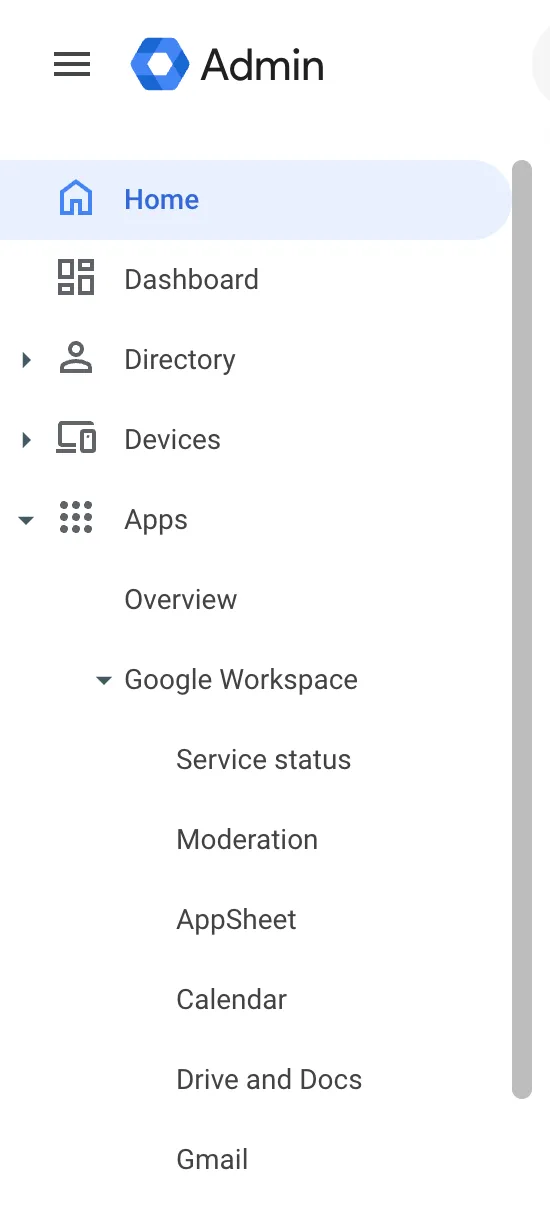
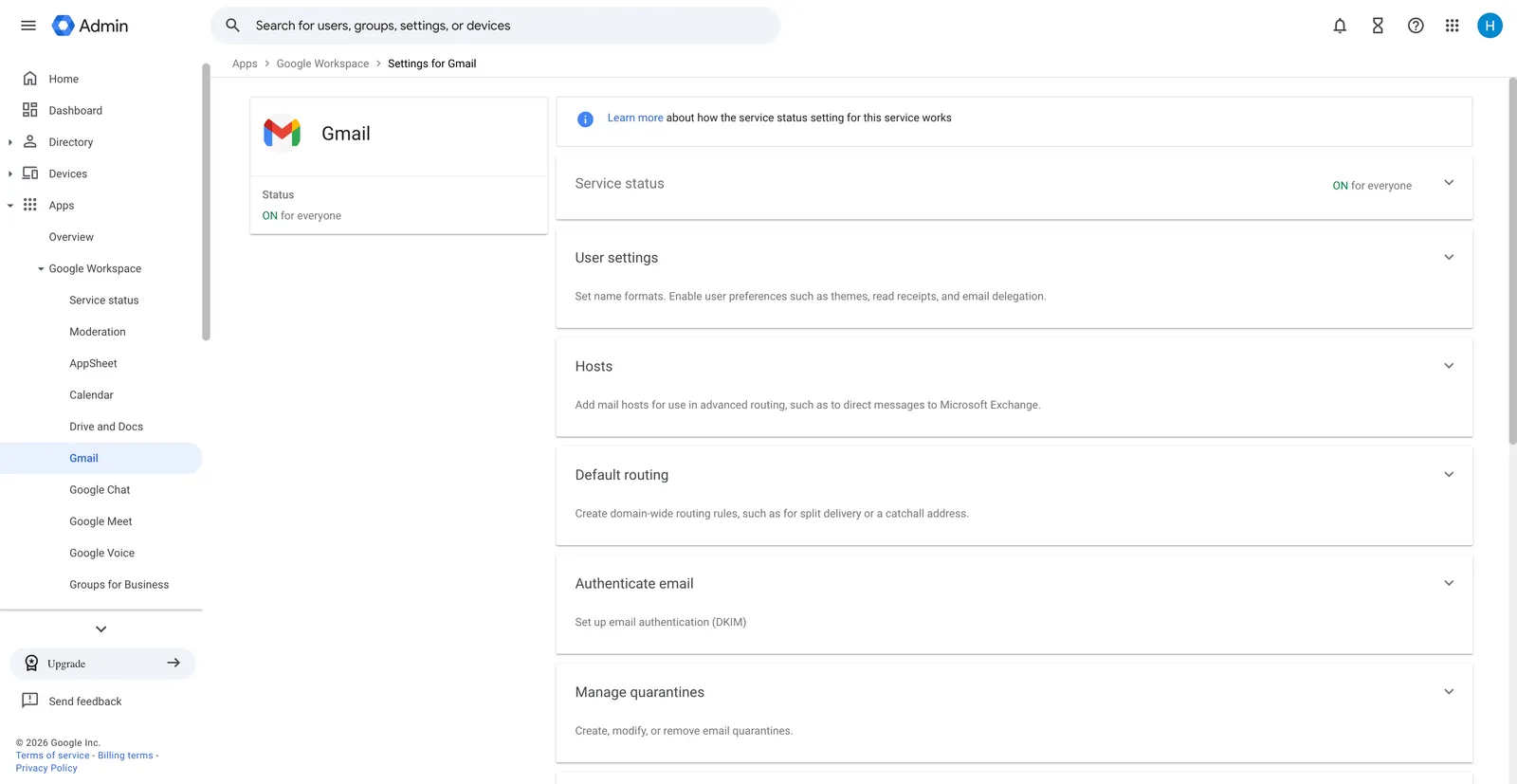
In the left menu, navigate to Apps → Google Workspace → Gmail.
Configure host
First, add AgentMail as a mail host. This tells Gmail which server to route emails to.
In the Hosts section, click Add Route.
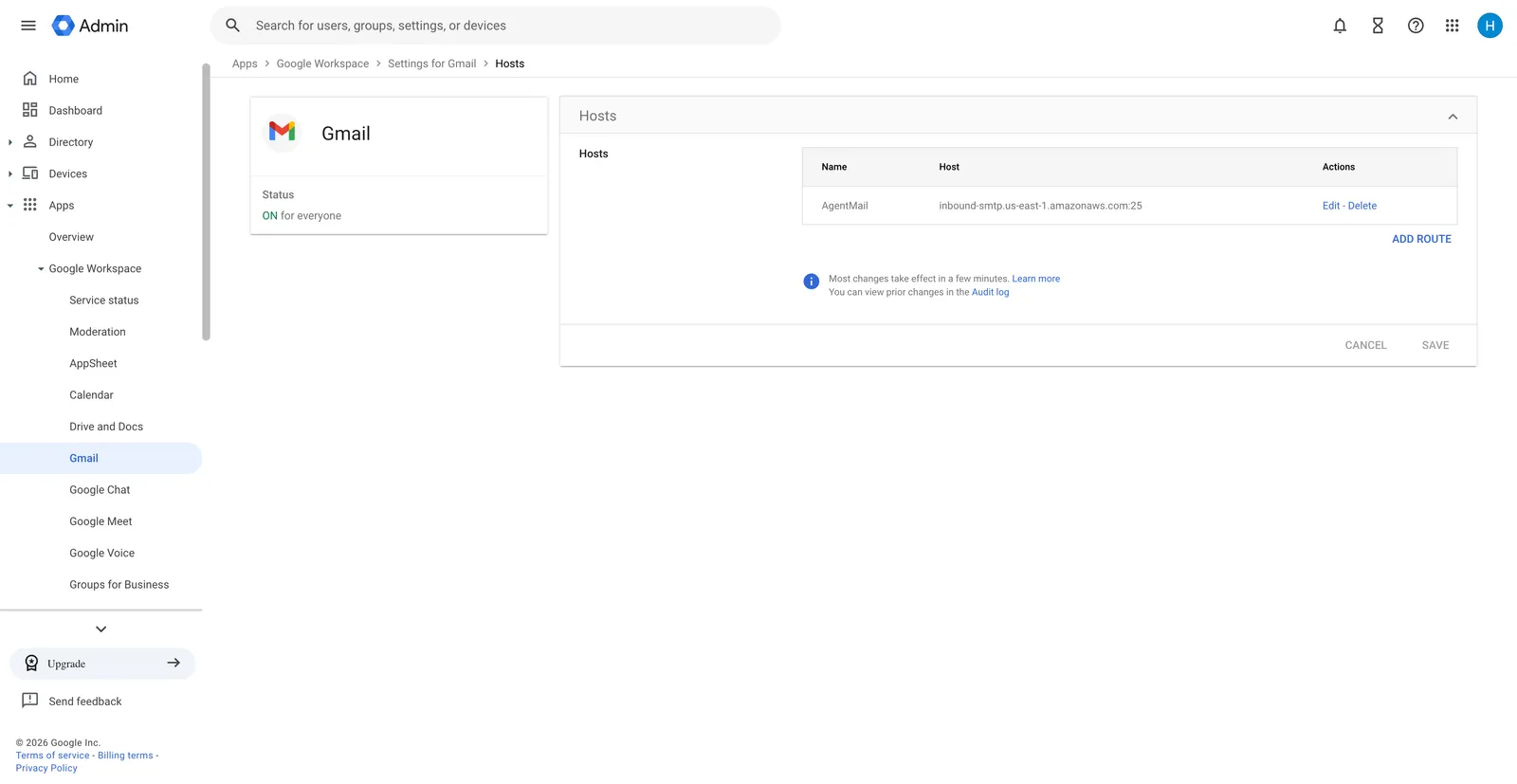
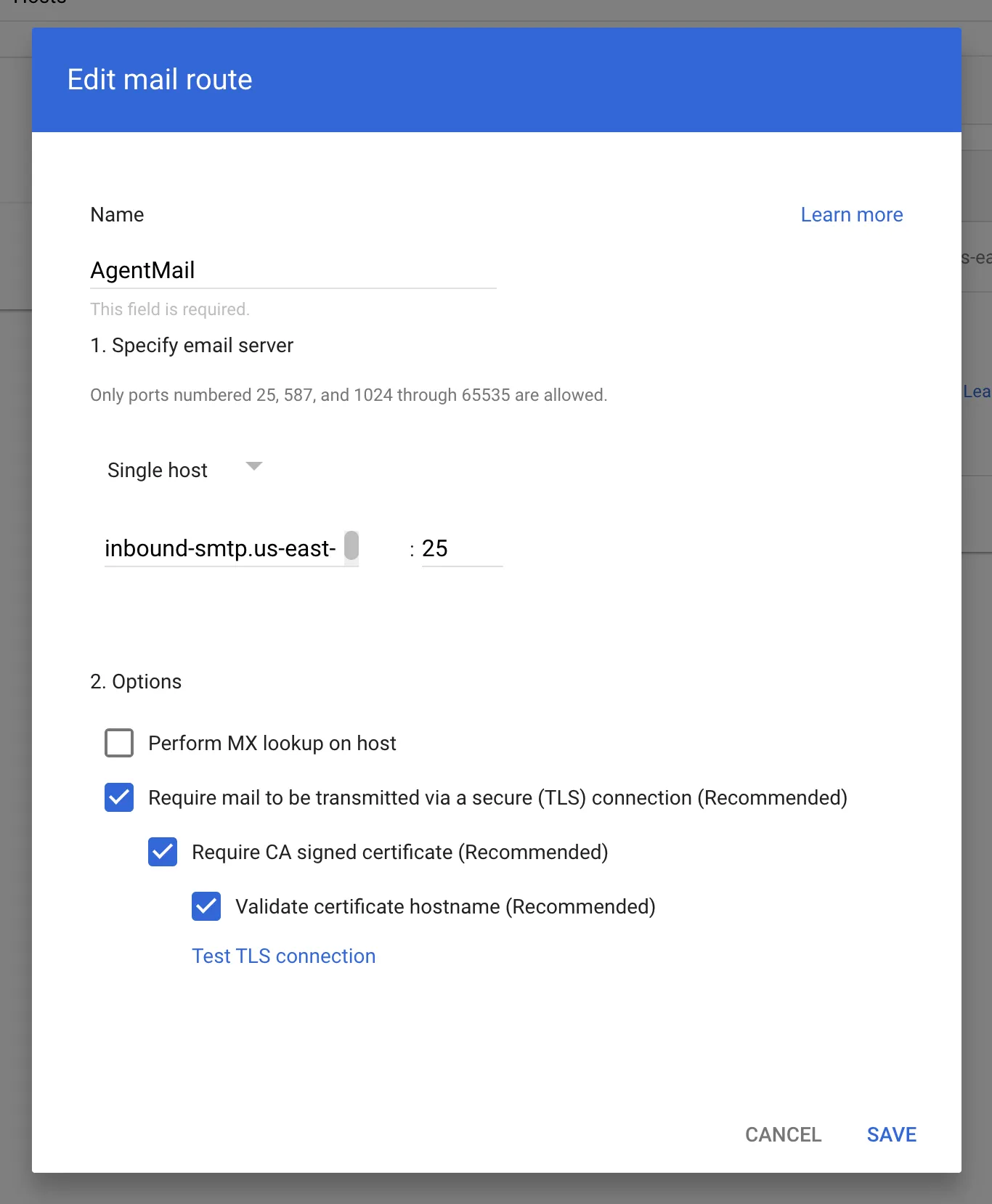
Configure the route with the following settings:
- Set the name to AgentMail
- Select Single host
- Enter
inbound-smtp.us-east-1.amazonaws.comfor the host name (inbound-smtp.eu-central-1.amazonaws.comfor EU-region domains) - Enter
25for the port - Check the recommended options
- Click Save
Configure routing rule
Navigate back to the Gmail settings page and scroll to the Routing section at the bottom.
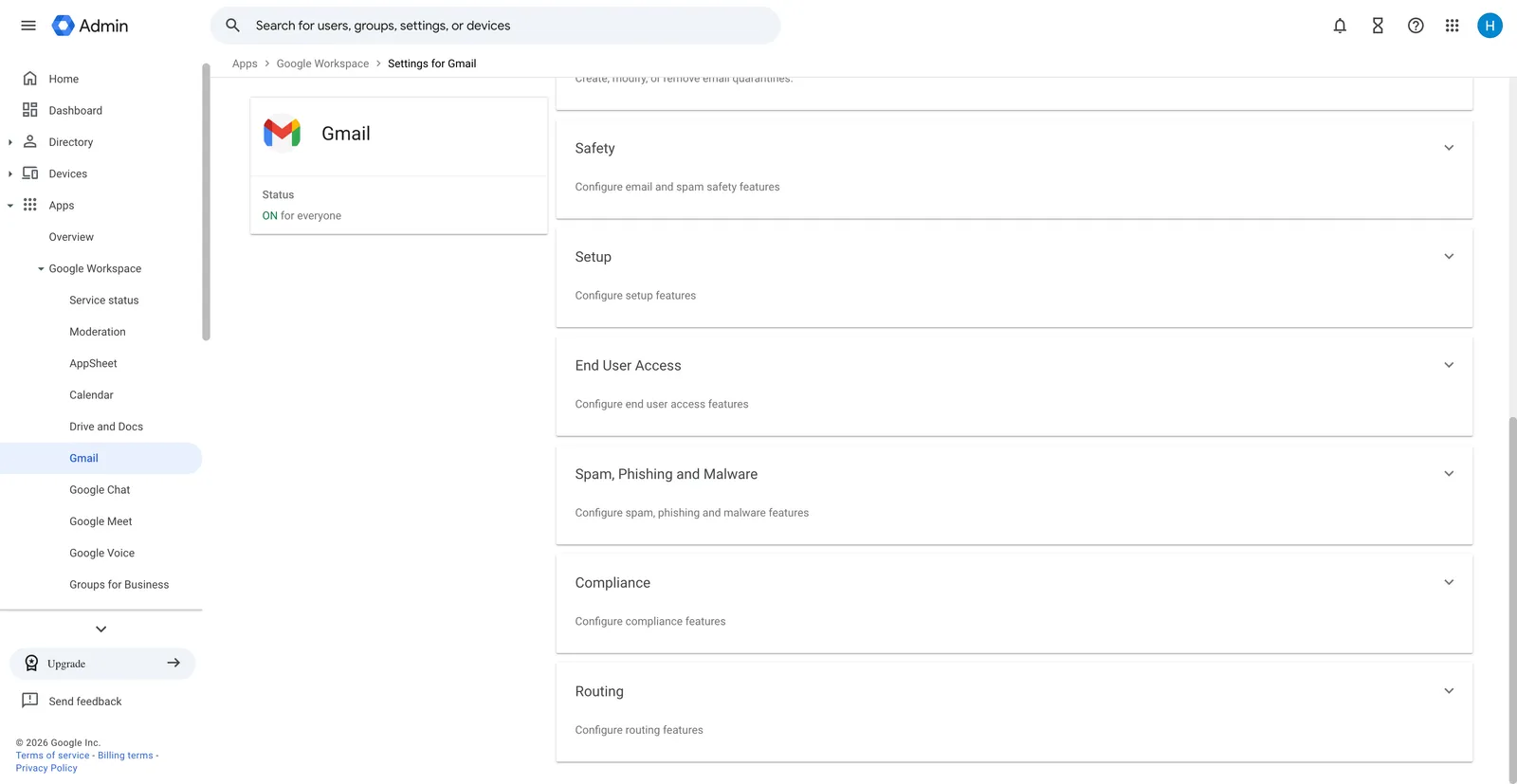
In the routing settings, click Add another rule.
Check Inbound and Internal - Receiving, then set the action to Modify message.
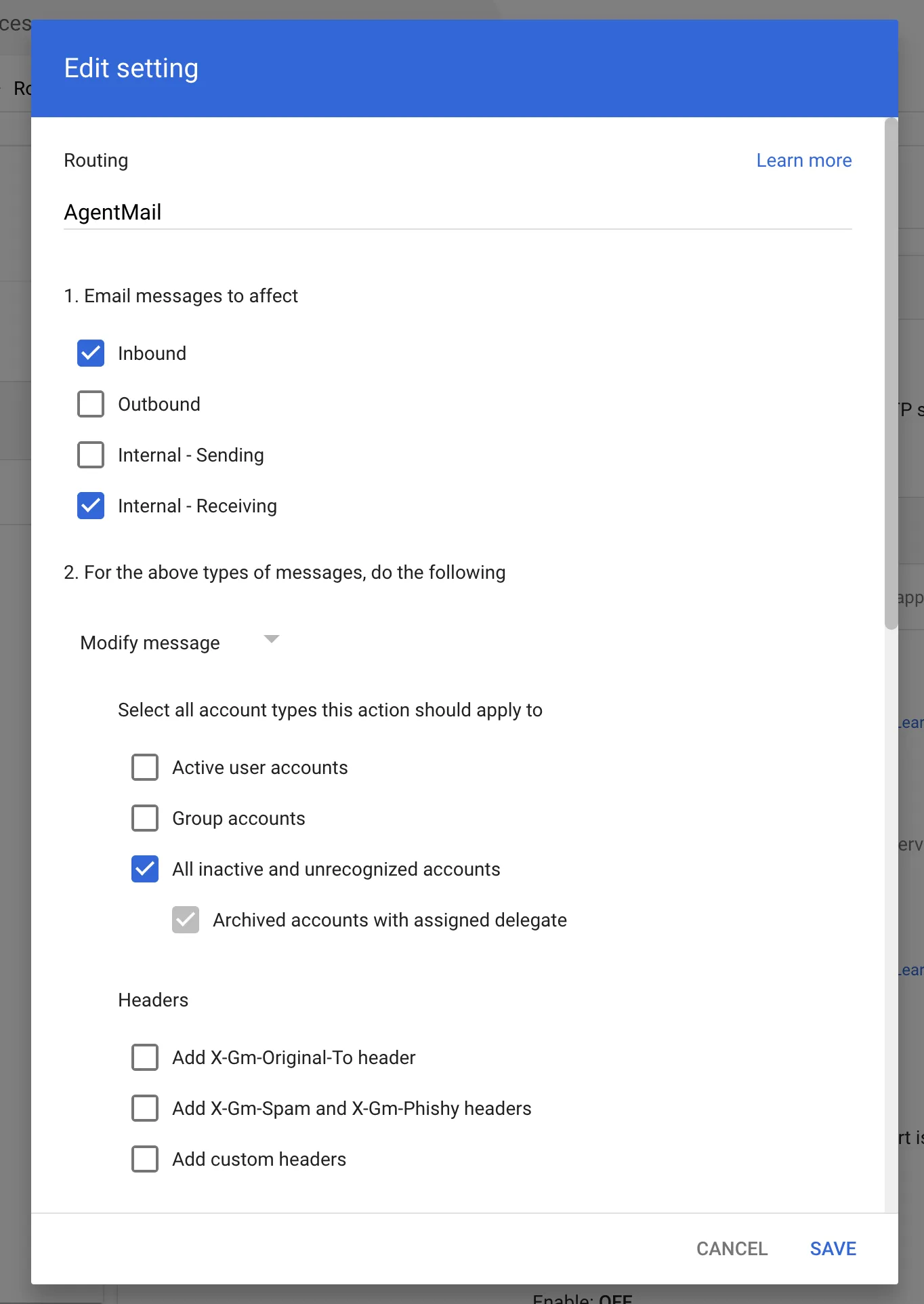
Scroll down and check All inactive and unrecognized accounts. Check Change route and select the AgentMail route from the dropdown.
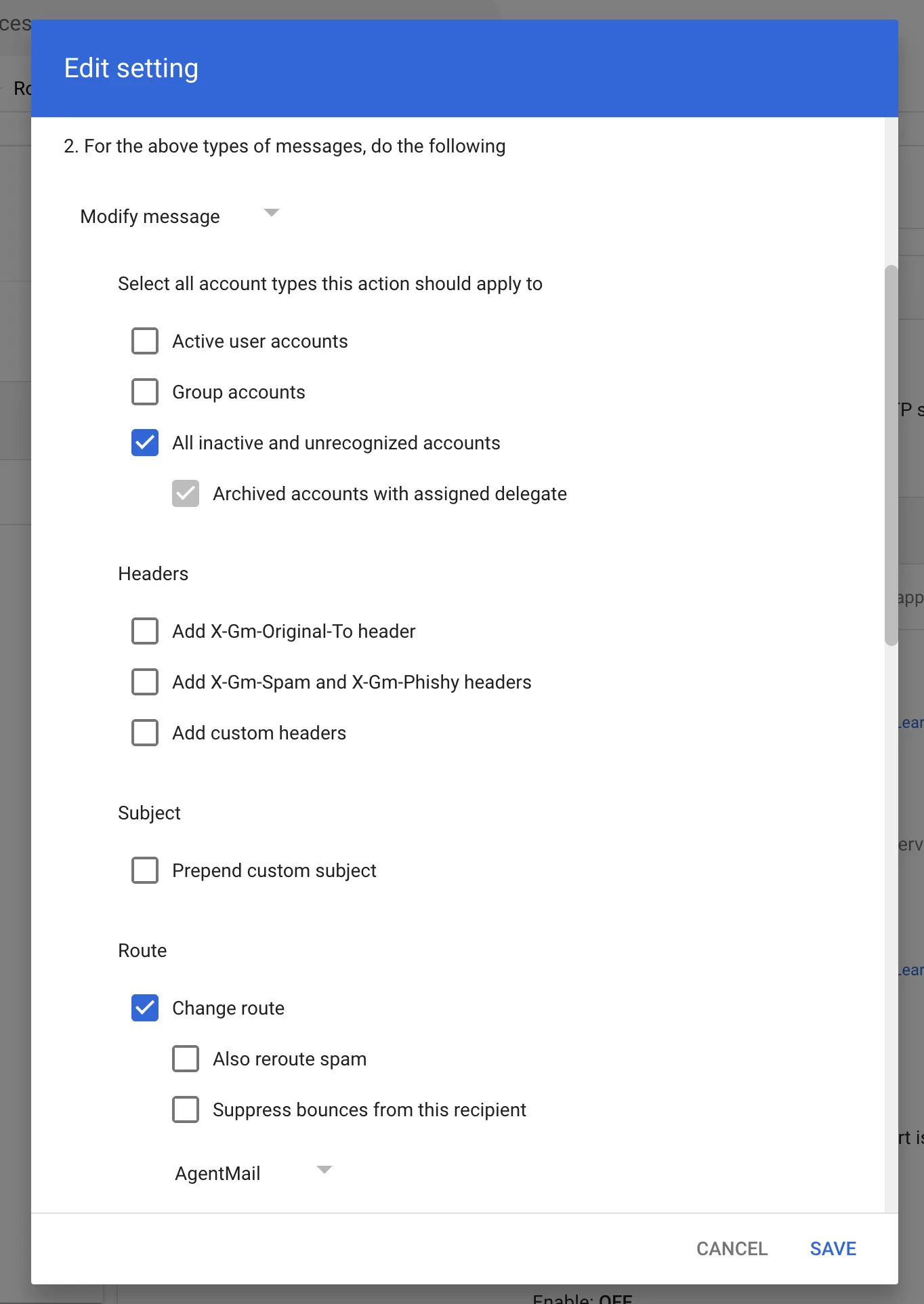
Click Save to apply the rule. Emails sent to addresses that don’t belong to existing Gmail accounts will now be routed to AgentMail.
Inboxes and catch-all behavior
Use an AgentMail inbox address that is not already used by a Google Workspace user, alias, or group. With this routing rule, Google handles recognized addresses, so creating the same address in AgentMail will not cause messages to be forwarded there.
Google’s routing rule forwards unrecognized addresses to AgentMail. By default, each destination address must already have an AgentMail inbox; the rule does not create inboxes or collect unknown recipients into a single catch-all inbox. Create the inboxes you intend to receive mail at before using those addresses.